


A real client requirement
So you built a website. Maybe you followed my previous tutorial where we used Claude Code to create a family law website from scratch in 10 minutes. The site looks great but the contact form doesn't do anything or maybe you already set up a simple email reply.
Now what?
Here's what usually happens: someone fills out your form, the data sits in your inbox, you copy it into a spreadsheet, write a reply manually, and hope you remember to follow up next week. Multiply that by 10 leads a day and you're spending hours on repetitive work.
Replying to every lead personally sounds great until you're doing it 15 times a day. There's a better way.
That's exactly what we're building today. We'll take that contact form from the law firm website and connect it to n8n and AI so it handles the first reply, logs everything in a CRM, notifies your team, and follows up automatically if nobody responds. I am learning as I create this blog post too! So hopefully that forces me to explain things better.
Index
- What we're building
- Set up your Google Sheets CRM
- Create your n8n account
- Build Workflow #1: New Lead Handler
- Build Workflow #2: Follow-up Scheduler
- Activate your workflows
- Test everything
- Final thoughts
Some assumptions
Before we start, I'm assuming:
- You have a website with a contact form (if not, check out the vibe coding tutorial to build one)
- You have a Google account for Google Sheets, if you don't have one, create one here.
- You have an OpenAI API key (or will use n8n's built-in AI)
What we're building
We're building two workflows that work together:
Workflow 1: New Lead Handler
Runs every time someone submits your contact form.
- Their info goes straight into Google Sheets (your CRM)
- Your team gets an email notification
- AI writes a personalized reply based on their message
- That reply gets sent to the lead automatically
- The "last contact" date gets logged
Workflow 2: Follow-up Scheduler
Runs every day at 9 AM and catches leads that fell through the cracks.
- The system checks for leads still marked as "New"
- If it's been 7 days with no status update → send follow-up #1
- If it's been 14 days with no status update → send follow-up #2
- If it's been 21 days without status updates → mark as "Dead"
Your team just needs to update the status when they actually talk to someone. The automation handles the rest.
Step 1: Set up your Google Sheets CRM
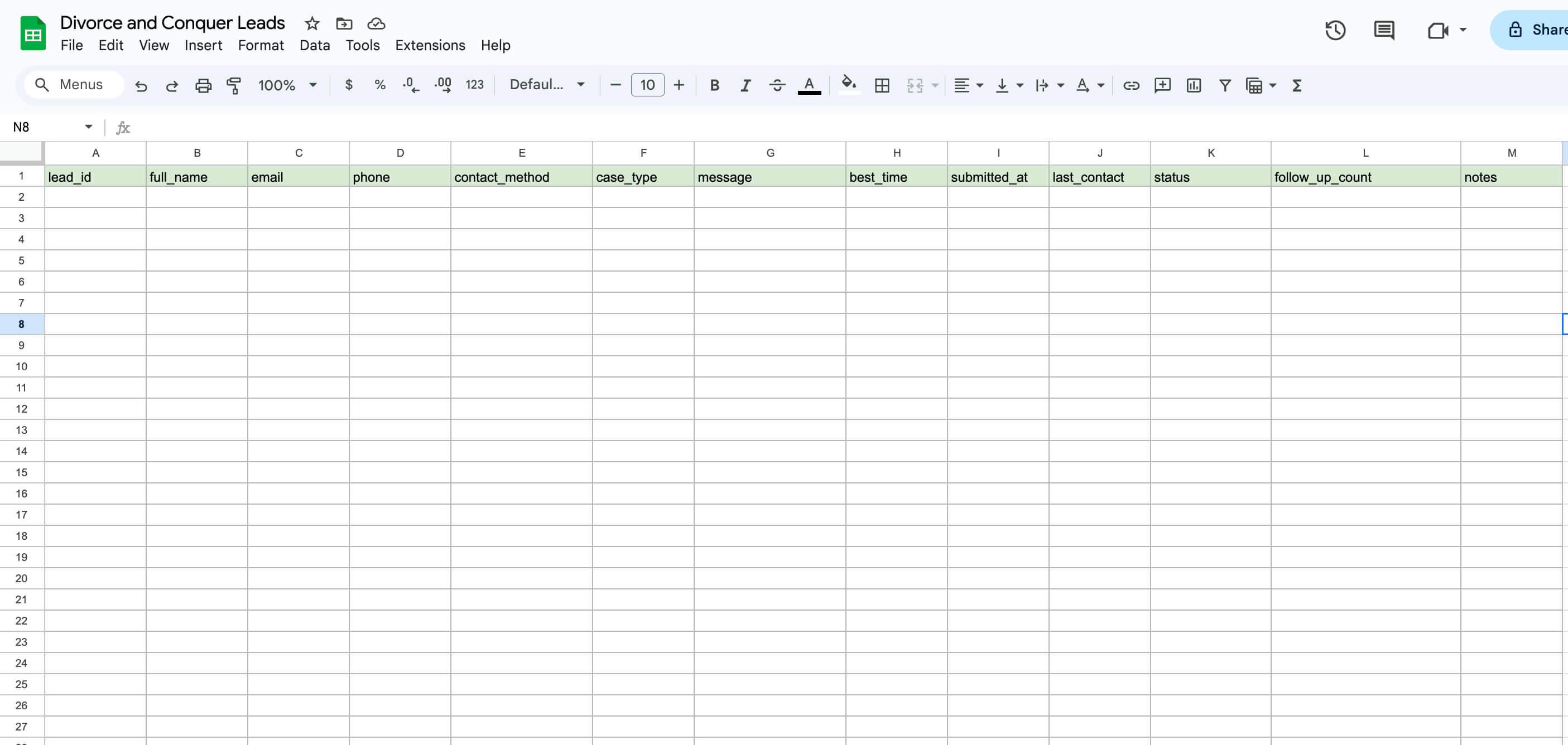
Create a Google Sheet that will act as your CRM. Nothing fancy, just a spreadsheet with the right columns.
Create these columns in row 1:
| Column | What it's for |
|---|---|
| lead_id | Unique identifier (LEAD-001, LEAD-002, etc.) |
| full_name | From the form |
| From the form | |
| phone | From the form |
| contact_method | Their preference (email or phone) |
| case_type | Divorce, Custody, Alimony, etc. |
| message | What they wrote |
| best_time | When to call them |
| submitted_at | When they filled out the form |
| last_contact | Date of last outreach |
| status | New → Contacted → Converted / Dead |
| follow_up_count | How many automated follow-ups sent (0, 1, 2) |
| notes | Your team's manual notes |
Download leads.xlsx template that you can upload to Google Sheets.
That's your entire CRM. Simple.
Step 2: Create your n8n account
Head to n8n.io and create an account. The free cloud tier gives you 2,500 workflow executions per month, plenty to get started and test everything.
Once you're in, you'll see an empty canvas. This is where the magic happens.
You can also self-host n8n if you want more control, but for this tutorial the cloud version works great.
Step 3: Build Workflow #1: New Lead Handler
Create a new workflow in n8n and name it "New Lead Handler" or whatever you want. Here's what we're building:
Webhook → Set Fields → Google Sheets (append) → Send Notification → OpenAI → Send Email → Google Sheets (update)
Let's go node by node.
3.1 Webhook node
This creates a URL that your form will send data to. Click the + button and search for "Webhook".
Set the HTTP method to POST. You'll see two URLs: a Production URL and a Test URL. Copy the Production URL and save it somewhere—you'll need it later when connecting your form for real. Also copy the Test URL, we'll use that one first to grab the form data before building out the rest of the workflow.
Before moving on, let's test the webhook. You can tell it's the test URL because it has "test" in the path. Replace the simulated API call in your contact.js with this:
// Get form values
const formData = {
  fullName: document.getElementById('fullName').value.trim(),
  email: document.getElementById('email').value.trim(),
  phone: document.getElementById('phone').value,
  contactMethod: document.querySelector('input[name="contactMethod"]:checked').value,
  caseType: document.getElementById('caseType').value,
  message: document.getElementById('message').value.trim(),
  bestTime: document.getElementById('bestTime').value,
  timestamp: new Date().toISOString()
};

// Show loading state
window.formUtils.setLoadingState(submitBtn, true);

fetch('https://stevenpotts.app.n8n.cloud/webhook-test/8cd0b9f0-9382-4c18-aa7f-2609ae735e49', {
  method: 'POST',
  headers: { 'Content-Type': 'application/json' },
  body: JSON.stringify(formData)
})
  .then(response => {
    if (response.ok) {
      // Hide loading state
      window.formUtils.setLoadingState(submitBtn, false);

      // Show success message
      successMessage.style.display = 'block';

      // Hide form
      form.querySelectorAll('.form-group').forEach(group => {
        group.style.display = 'none';
      });
      submitBtn.style.display = 'none';

      // Scroll to success message
      successMessage.scrollIntoView({ behavior: 'smooth', block: 'nearest' });

      // Show alert
      window.formUtils.showAlert('Your message has been sent successfully!', 'success');
    }
  })
  .catch(error => {
    console.error('Error:', error);
    window.formUtils.setLoadingState(submitBtn, false);
    window.formUtils.showAlert('Something went wrong. Please try again.', 'error');
  });
Click "Listen for test event" or Play Button in the webhook node in n8n, then submit the form on your website. The webhook should pick up the data and you'll see all the fields appear in n8n. THIS IS REALLY IMPORTANT so you can test out each step in the n8n Workflow.
3.2 Set node
This cleans up the incoming data and adds fields we need. Search for "Set" and add these fields:
- name:
lead_id
value:LEAD-{{$now.format('yyyyMMddHHmmss')}} - name:
status
value:New - name:
follow_up_count
value:0 - name:
last_contact
value:{{$now.format('yyyy-MM-dd')}} - name:
submitted_at
value:{{$now.toISO()}}
3.3 Google Sheets node (append)
Connect your Google account and select your CRM spreadsheet. Set the operation to "Append Row" and map all the fields from the Set node to the correct columns. You can see how in the left panel I see all the data flowing throw the n8n Workflow, I can drag and drop the values where I want, we are using data from the Set Node and the Webhook Node.
3.4 Email node
Add a Email node to notify your team when a new lead comes in. If you use Google like in the example, you will have to connect your Google Account. Be sure to write the correct email of the person that needs to be notified a new lead submitted a form, in the case I used stevenpottsb@gmail.com.
Use a message like:
🆕 New lead: {{$json.full_name}}
Case type: {{$json.case_type}}
Message: {{$json.message}}
Contact preference: {{$json.contact_method}}
But replace the variables with the correct data from the webhook as shown in the video.
3.5 OpenAI node
This is where it gets fun. Add an OpenAI node and set the operation to "Message a Model". You can check out how to get your OpenAI api key here How To Get Your Own OpenAI API Key .
Use a prompt like this:
You are a helpful assistant for Divorce and Conquer, a family law firm. Write a warm, professional email to {{$json.full_name}} acknowledging their inquiry about {{$json.case_type}}.

Their message: "{{$json.message}}"
Preferred contact method: {{$json.contact_method}}
Best time to reach them: {{$json.best_time}}

Include:
- Thank them for reaching out
- Briefly acknowledge their situation with empathy (divorce is hard)
- Let them know a team member will contact them soon via their preferred method
- Mention the office phone for urgent matters: 555-123-4567

Keep it under 150 words. Sign off as "The Divorce and Conquer Team". Just write the body of the email.
Be sure to replace the variables by dragging from the values received from the Webhook on the left panel. The AI generates a personalized response based on what they actually wrote. Someone asking about custody gets a different tone than someone asking about asset division.
Try clicking on 'Execute Step', if it doesn't let you because you don't have data, then execute the previous steps.
3.6 Email node
Add a "Send Email" node. Set the recipient to the lead's email address and the body to the AI's output from the previous node.
Step 4: Build Workflow #2: Follow-up Scheduler
Create a second workflow called "Follow-up Scheduler". This one runs daily and catches leads that fell through the cracks.
Here's the structure:
Schedule Trigger → Google Sheets (read) → Filter → Code → Switch → [OpenAI → Email → Google Sheets (update)] per branch
Create a Trigger node and set it to run daily at 9 AM (or whenever makes sense for your business).
4.1 Google Sheets node (read)
Add a Google Sheets node set to "Read Rows". Pull everything from your CRM spreadsheet. Add a Filer to the Node so you only get records with status 'New', which means records your team hasn't manually updated and that are not 'Dead'.
4.2 Code node
Add a Code node to calculate how many days it's been since last contact:
return $input.all().map(item => {
  const today = new Date();

  // Use bracket notation
  const lastContact = new Date(item.json['last_contact']);

  // Use .getTime() for math
  const daysSinceContact = Math.floor((today.getTime() - lastContact.getTime()) / (1000 * 60 * 60 * 24));

  return {
    json: {
      ...item.json,
      days_since_contact: daysSinceContact
    }
  };
});
Be sure to select 'Run Once for All Items' in the 'Mode' field and language is 'Javascript'.
4.3 Switch node
Add a Switch node with three branches based on timing. Add 3 Routing Rules and when clicking on the field, select 'Expression' and copy and paste the following conditions. Also be sure to select 'Boolean' -> is true for each rule.
Branch #1 (7 days):
- Condition:
{{ $json.days_since_contact >= 7 && $json.days_since_contact < 14 && $json.follow_up_count == 0 }}
Branch #2 (14 days):
- Condition:
{{ $json.days_since_contact >= 14 && $json.days_since_contact < 21 && $json.follow_up_count == 1 }}
Branch #3 (21 days):
- Condition:
{{ $json.days_since_contact >= 21 }}
4.4 OpenAI nodes (Branch #1 and Branch #2)
Each branch needs its own OpenAI node with a different prompt.
Branch #1 (7 days): OpenAI prompt node:
Write a friendly follow-up email to {{$json.full_name}} who inquired about {{$json.case_type}} a week ago.
Ask if they had any questions or would like to schedule a consultation.
Keep it brief and helpful, not pushy.
Branch #2 (14 days): OpenAI prompt node:
Write a final follow-up email to {{$json.full_name}} about their {{$json.case_type}} inquiry from two weeks ago.
Let them know you're still available if their situation has changed.
Mention this is your last follow-up but they're welcome to reach out anytime.
Keep it warm and respectful.
Be sure to replace the variables with the correct values by dragging them from the left panel as you can see in the video.
4.5 Email nodes (Branch #1 and Branch #2)
After each OpenAI node, add an Email node to send the follow-up.
In order to test the first path, I manually changed the 'last_contact' date in my Google Sheet so it's more than 7 days ago but less than 14 years ago, then I had to execute the previous nodes to be able to get the data to add it to the email node. I did this for both email nodes.
For the second one I actually went back to the 'Sheet node' to get the data because I hadn't updated the 'follow_up_count'. Hopefully the video makes it clear.
4.6 Google Sheets nodes (Branch #1 and Branch #2 and Branch #3)
After sending each follow-up, update the row, you will match the row on the column lead_id and drag 'lead_id' from the Sheets in the left panel.
Branch #1 (7 days):
- Set
follow_up_countto 1 - Update
last_contactto{{$now.format('yyyy-MM-dd')}}
Branch #2 (14 days):
- Set
follow_up_countto 2 - Update
last_contactto{{$now.format('yyyy-MM-dd')}}
Branch #3 (21 days):
- Set
statusto "Dead" to{{$now.format('yyyy-MM-dd')}}
Step 5: Activate your workflows
Now you can activate both your workflows and change the webhook to the Production URL you saved earlier.
Replace the test URL in your contact.js with the production one:
// Get form values
const formData = {
  fullName: document.getElementById('fullName').value.trim(),
  email: document.getElementById('email').value.trim(),
  phone: document.getElementById('phone').value,
  contactMethod: document.querySelector('input[name="contactMethod"]:checked').value,
  caseType: document.getElementById('caseType').value,
  message: document.getElementById('message').value.trim(),
  bestTime: document.getElementById('bestTime').value,
  timestamp: new Date().toISOString()
};

// Show loading state
window.formUtils.setLoadingState(submitBtn, true);

fetch('https://stevenpotts.app.n8n.cloud/webhook/8cd0b9f0-9382-4c18-aa7f-2609ae735e49', {
  method: 'POST',
  headers: { 'Content-Type': 'application/json' },
  body: JSON.stringify(formData)
})
  .then(response => {
    if (response.ok) {
      // Hide loading state
      window.formUtils.setLoadingState(submitBtn, false);

      // Show success message
      successMessage.style.display = 'block';

      // Hide form
      form.querySelectorAll('.form-group').forEach(group => {
        group.style.display = 'none';
      });
      submitBtn.style.display = 'none';

      // Scroll to success message
      successMessage.scrollIntoView({ behavior: 'smooth', block: 'nearest' });

      // Show alert
      window.formUtils.showAlert('Your message has been sent successfully!', 'success');
    }
  })
  .catch(error => {
    console.error('Error:', error);
    window.formUtils.setLoadingState(submitBtn, false);
    window.formUtils.showAlert('Something went wrong. Please try again.', 'error');
  });
Notice the URL no longer has "test" in the path—that's your production webhook.
Redeploy your site and you're live. In the video I'm using Cloudflare Pages, same setup from the vibe coding tutorial.
Step 6: Test everything
Before going live, test the full flow:
Test Workflow 1:
- Submit a test form entry
- Check that it appears in Google Sheets with status "New"
- Verify you got the Slack notification
- Check that the AI email was sent to the lead
Here is a successful test for the first workflow. I am sending the emails from my connected Gmail account 'sdpotts93@gmail.com', I set the stakeholder's email to 'stevenpottsb@gmail.com' and the lead email was also 'stevenpottsb@gmail.com'.
So that means all emails sent are sent from 'sdpotts93@gmail.com' and all emails will be received by 'stevenpottsb@gmail.com'.
Test Workflow 2:
- Manually change
last_contactto 8 days ago in the sheet - Run the follow-up workflow manually
- Verify the first follow-up email sent and
follow_up_countupdated to 1
Once everything works, activate both workflows and let them run.
I actually tested the three branches below and they succesfully executed.
Final thoughts
This setup took me about an hour the first time. The time savings compound fast when you're not manually copying data and writing the same "thanks for reaching out" emails over and over.
A few things to consider:
Your team still matters. The automation handles the boring stuff, but someone needs to actually call these people and update the status. The system only works if your team uses it.
AI emails need tuning. The first few outputs might sound generic. Tweak your prompts based on real results. Add examples of good responses. The more specific you are, the better it gets.
Start simple. I showed you a full system here, but you could start with just the webhook → sheets → notification part. Add AI emails later. Add follow-ups after that. Iterate.
Watch for edge cases. What if someone submits twice? What if the email bounces? Build in safeguards as you discover problems.
The goal isn't to replace human connection. It's to make sure no lead falls through the cracks while your team focuses on the conversations that actually matter.
Hope this was useful. You can contact me if you have any questions.